Check your Mac camera before a video call
Open a camera preview before joining the call, then check the camera and microphone selected in your meeting app. A mirror can help with framing, but it cannot confirm that another app is using the same camera or audio input.
Start with a built in preview
Open Photo Booth to inspect the picture without joining a call. Apple documents using the built in or an external camera in its Photo Booth guide, checked on 2 November 2026. You do not need to take a photo to decide whether the framing is useful.
Look at the area behind you as well as your face. Adjust the display or camera position before changing several software settings. Then close the preview when you have finished checking it.
A quick mirror in the notch
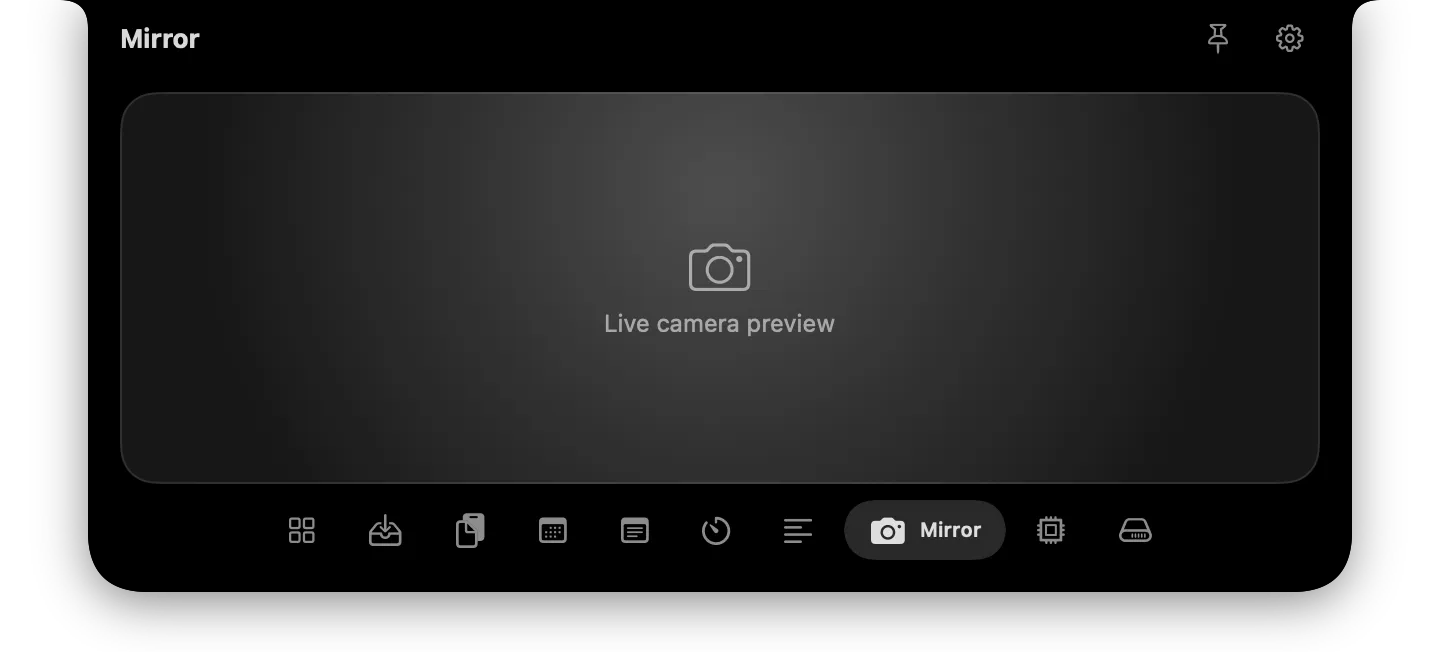
This real app render shows a neutral placeholder, not a live camera feed. In the running app, open Mirror and respond to the macOS camera permission prompt if you want to use the preview. This tool is for a quick look at framing before you return to the call.
If the preview is blank
Open System Settings > Privacy & Security > Camera and review the relevant app. Apple’s camera access guide explains that the list contains installed apps that have requested camera access.
Check the app you are actually trying to use. Allowing a mirror utility does not automatically allow a meeting app, and allowing a browser is separate from choosing a camera inside a particular meeting. Follow that app’s own settings if the picture is still missing.
Check the meeting app separately
| Check | Why it matters |
|---|---|
| Selected camera | A laptop and an external webcam can show different views |
| Selected microphone | A working camera does not establish working audio |
| Preview framing | The meeting app may crop or process the image differently |
| Shared window or display | Your script or other private content may otherwise be visible |
Use the meeting app’s preview before joining. If you record a short test, use harmless content and review it before relying on the setup for a presentation. The notch mirror does not configure lighting effects, recording settings or microphone levels in another app.
For reading notes near the lens, the teleprompter guide explains placement and rehearsal. For access decisions, use the permissions checklist.
