The complete guide to the Mac notch: 25 ways to use it
What the notch is good for, and 25 small jobs you can do from it, from parking a file to checking yourself before a call.
TL;DR
- The notch is a good spot for the small jobs you do all day: parking a file, finding something you copied, pausing a song, starting a timer, checking yourself before a call.
- This guide lists 25 of them and how to do each one in NotchStar, my app. It also says what NotchStar doesn’t do, and when another notch app is the better pick.
- NotchStar costs $4 once, with a 7 day free trial that has every feature unlocked. Prices as of 7 October 2026.
What the notch is for
The notch is the black cutout at the top of recent MacBook screens. It holds the camera and its sensors, and macOS keeps menus out of that strip. Most people ignore it, and some find it in the way.
It has one thing going for it: it never moves. It’s in the same place whatever app you’re in, which makes it a good home for small tools you want within reach. That’s what a notch app does. It turns the spot into a panel you open with a hover and close by moving away. If you want the background first, the guide on what a notch app is covers it. And if your menu bar icons are vanishing behind the notch, that’s a different problem with a short fix, in the guide on hidden menu bar icons.
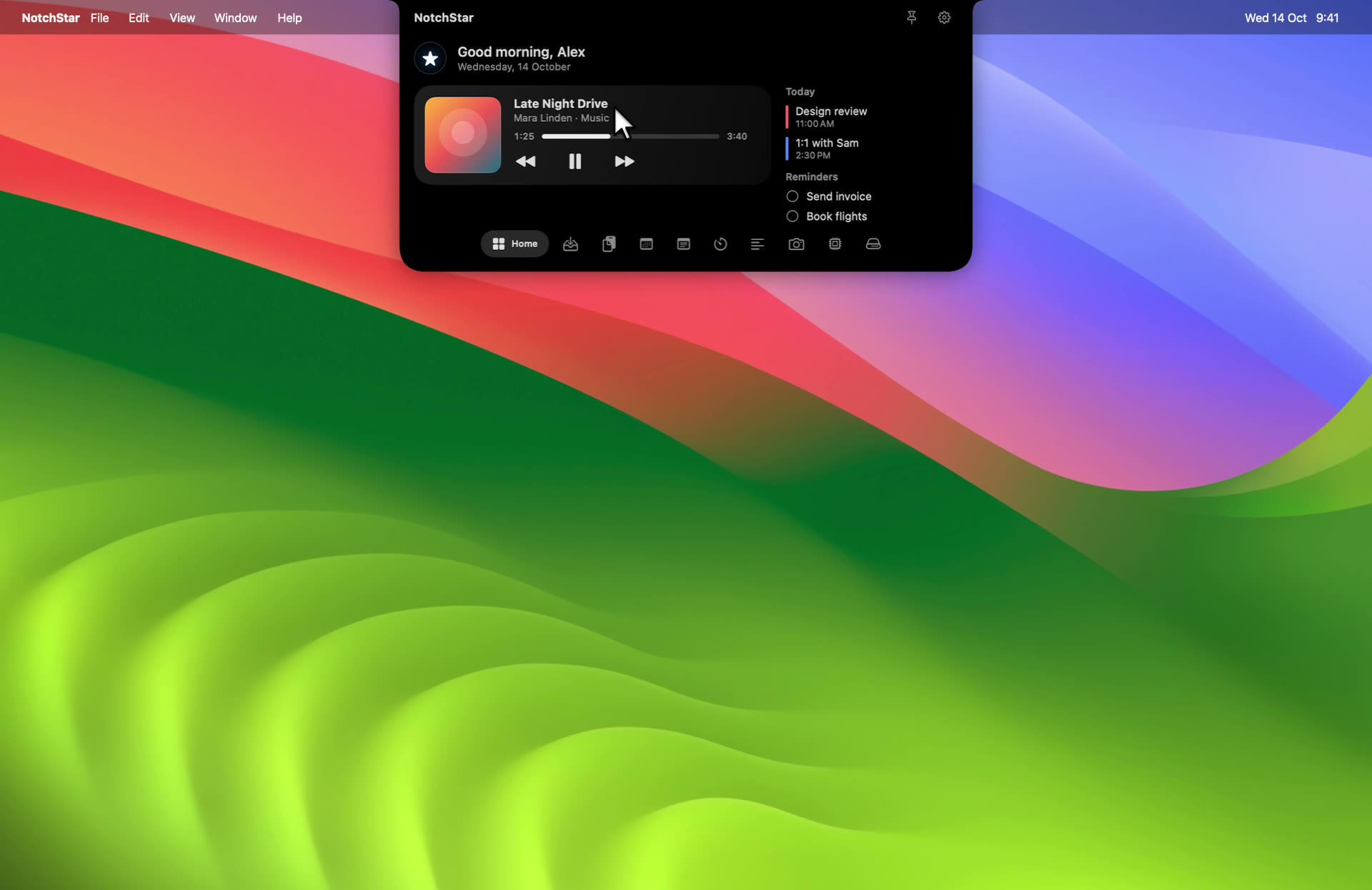
NotchStar is my app, and it has ten tools: Home (with Now Playing), Shelf, Clipboard, Calendar and Reminders, Quick Notes, Timers, Teleprompter, Mirror, System and Disk. The rest of this guide goes through 25 jobs they handle. The clips are recorded with sample data, so none of it comes from a real library, calendar or clipboard.
25 jobs for the notch
Each job says what you’re trying to do and how to do it in NotchStar. Where something works differently than you’d expect, the text after the table says so.
Files and disk
| # | Job | How in NotchStar |
|---|---|---|
| 1 | Park a file while you switch windows | Drop the file on the shelf. When you’re ready, drag it out into a folder, a message or an app. |
| 2 | Send a file to your iPhone or a nearby Mac | Drop it on the AirDrop zone. The usual AirDrop picker opens with the file attached, so you choose a device and you’re done. |
| 3 | Open the shelf without opening the notch | Start dragging a file toward the top of the screen. The notch opens on the Shelf by itself, and closes again if you drop the file somewhere else. |
| 4 | Find a file by name | Disk tab, Find. Results appear as you type, hidden files included. |
| 5 | Find duplicate files | Disk tab, Duplicates. It compares what’s inside the files, not their names, and keeps the oldest copy of each set. |
| 6 | See what’s eating your space | Disk tab, Space. It ranks every folder in your home folder by size, and you can open one or show it in Finder. |
| 7 | Remove an app without leaving junk behind | Disk tab, Apps. Each app is listed with the caches, preferences and logs it leaves behind, so removing it cleans up fully. |
The shelf keeps references to your files, not copies, so if you move or delete the original, its entry stops working. It also empties when you quit NotchStar, so keep anything important in a folder. Dragging to open reacts to files only, not to text or images dragged from a web page.
The Disk tab is careful by design. Nothing runs in the background, and every scan starts when you press its button. Everything it removes goes to the Trash, never straight to deletion, and only from your home folder and your Applications folder, so you can put things back. Duplicates skips files under 1 MB. Apple apps and NotchStar itself are never offered for removal, and the first time you scan Documents, Desktop or Downloads, macOS asks whether to allow it. If you want a full routine for freeing space, read the guide on freeing space without a cleaner.
Clipboard
| # | Job | How in NotchStar |
|---|---|---|
| 8 | Get back something you copied earlier | Clipboard tab. The 50 most recent items are there, newest first. Click one to copy it again. |
| 9 | Find a link you copied ten minutes ago | Type in the search box. It ignores capital letters and accents, so café finds Cafe. |
| 10 | Copy an image again | The last 10 images are kept, stored at a reduced size. Click one to put it back on the clipboard. |
| 11 | Copy files again that you copied in Finder | Files are stored as files, not as their names, so clicking the row puts the files back. |
| 12 | Keep passwords out of the history | Anything a password manager marks as concealed is skipped, and the history lives in memory only. |
Copying the same thing twice moves it to the top instead of piling up duplicates. The limits are worth knowing, because a clipboard history is only as private as you keep it:
Music and media
| # | Job | How in NotchStar |
|---|---|---|
| 13 | Pause without switching apps | Home tab. The pause button is on the Now Playing card. |
| 14 | Skip to the next track | The next button on the same card. Controls go to whichever app is playing. |
| 15 | See the cover and the title | The card shows the real artwork from macOS, so it matches the track that’s playing, in Spotify, Apple Music and other players that report to macOS. |
| 16 | See how far into a track you are | A progress bar with timestamps, whenever the player provides a duration. |
Some tracks, such as radio style Apple Music items, have no duration, so there’s no bar. NotchStar leaves it out rather than guess. The card updates the moment you play, pause or change track, and it only listens while the card is on screen.
One honest caveat: this relies on a macOS interface that Apple doesn’t document and has restricted before. If a macOS update breaks it, NotchStar falls back to reading Music and Spotify directly, and other players may stop showing until it’s fixed. The guide on how notch apps read Now Playing explains why.
Time: timers, calendar and reminders
| # | Job | How in NotchStar |
|---|---|---|
| 17 | Run a focus timer | Timers tab, Timer mode. Pick 5 to 60 minutes and press play. |
| 18 | Time something upward | Stopwatch mode. A ring completes every minute, and it keeps going until you stop it. |
| 19 | Work in Pomodoro blocks | Pomodoro mode. Choose 25 and 5, 50 and 10, or 15 and 3 minutes. Four dots track your sessions, and a skip button moves to the next phase. |
| 20 | See what’s next on your calendar | Calendar tab. Events from today and tomorrow that haven’t ended, in time order, in each calendar’s own colour. |
| 21 | Tick off a reminder | Click the circle beside a reminder. It’s saved straight back to the Reminders app. |
Timers keep counting when the notch is closed, and they finish with the sound you picked: Glass, Ping, Hero, Submarine or Funk, or no sound at all. A few limits: timers reset when you quit NotchStar, the alert is a sound rather than a banner, and the Calendar tab is a viewer, so it can’t create or edit events and only looks ahead to the end of tomorrow.
Calendar and Reminders come through macOS, so the iCloud, Google and Exchange accounts you’ve already set up appear without signing in again. macOS asks once for calendar access and once for reminders access, and you can change both later in System Settings, under Privacy and Security.
Screen and camera
| # | Job | How in NotchStar |
|---|---|---|
| 22 | Check how you look before a call | Mirror tab. A live, flipped camera preview, like a real mirror. The camera is only on while the tab is open. |
| 23 | Read a script while looking at the camera | Teleprompter tab. Press the pencil to paste your script, then press play. On a notched MacBook the text sits right beside the camera. |
| 24 | Jot a number or a name mid call | Quick Notes. One plain text note that saves as you type. |
| 25 | Check CPU, memory, disk and battery | System tab. Four rings and a network readout, which turn orange and then red as usage climbs. |
Mirror is a live preview only. It doesn’t record, take photos or apply filters, and it uses your Mac’s default camera. The teleprompter scrolls at the speed you set, with speed and size sliders that are remembered next time, but it doesn’t follow your voice and it holds one script at a time. Quick Notes keeps one note, in plain text, on your Mac only, with no sync between devices. System shows totals only, with no breakdown by app, and it samples once a second while the tab is open. The battery ring only appears on Macs that have a battery.
Apps you may already use
NotchStar doesn’t replace the apps already on your Mac. Clock, Calendar, Reminders, Photo Booth, Notes and Activity Monitor each do their own job, and if you only use one now and then, opening it is fine. The notch earns its place for the jobs you do many times a day, because each time it saves a trip to another window.
Choosing a notch app
If you decide you want an app, there are several, and they’re good at different things. This table uses only what each product’s own page says, checked on 7 October 2026. A feature a page doesn’t mention is marked not stated, because a missing mention isn’t proof that the feature is missing.
| App | Price | Minimum macOS | What it does that NotchStar does not | Source |
|---|---|---|---|---|
| Boring Notch | Free, open source | macOS 14 or later | A volume and brightness HUD in the notch | README on GitHub |
| Alcove | $14.99 purchase, per its site | macOS 15 or later | Live activities in the collapsed notch, lock screen widgets, volume and brightness HUDs, swipe gestures | Alcove site |
| MacNotch | From $4.99 a month through Setapp | macOS 14 or later | Widget grid, device batteries, file actions, profiles, weather | MacNotch on Setapp |
| OmniNotch | $19.99 after a launch sale that ended 5 October 2026, per its site | macOS 14 or later | 20 tools, including on device AI chat, weather, stocks and a unit converter | OmniNotch site |
| NotchStar | $4 once, up to 3 Macs, 7 day free trial | macOS 14 or later | Its own scope: 10 tools, and no live activities or widgets | notchstar.com |
Prices as of 7 October 2026.
NotchStar is mine, so weigh this table accordingly. Boring Notch is free and well liked, and if free and open source decide it for you, choose it. MacNotch and OmniNotch have more features, and Alcove is the pick for the Dynamic Island feel. NotchStar’s case is narrower: clipboard history, timers, a teleprompter and a camera mirror in one app, for a small one time price. Each of these apps has a longer side by side page, with sources, at notchstar.com/vs.
Macs without a notch
Not every Mac has a notch, and not every notch app needs one. On Macs without it, NotchStar shows a small floating pill at the top of the screen, which is also near the camera on most displays, so the Teleprompter and Mirror jobs work the same way. The guide on notch apps for Macs without a notch covers the options for any display.
Try it for an evening
You don’t need to learn all 25. Pick the few that match your day:
- Write down the three jobs from this list you do most often
- Install NotchStar and start the 7 day trial, which has every feature unlocked
- Do those three jobs from the notch for a day
- Keep it if it saved you trips to other windows, and uninstall it if it didn’t
NotchStar needs macOS 14 or later, and there’s no account to create. The first time you open it, macOS asks you to confirm, and the install page shows the two clicks. A job you do ten times a day is worth a faster path, and one you do once a month isn’t, so judge it on the first kind.
You can leave every permission off and open only the tools that do not need one. Calendar, Reminders, camera and Music control are requested when their features need access, not during account setup, because there is no account setup. The clipboard history stays in memory and clears when you quit. That makes an evening trial useful without committing your data to another service.
Cheat sheet
| Job | Where to go |
|---|---|
| Park a file | Shelf tab, or drag a file toward the notch |
| Send to a nearby device | AirDrop zone on the Shelf tab |
| Find a file or a duplicate | Disk tab: Find, Duplicates |
| See what’s using space | Disk tab: Space, Apps |
| Find something you copied | Clipboard tab, 50 items, search box |
| Pause, skip, see the cover | Home tab, Now Playing card |
| Start a timer or Pomodoro | Timers tab |
| See what’s next | Calendar tab, today and tomorrow |
| Check yourself before a call | Mirror tab |
| Read a script at the camera | Teleprompter tab |
| Jot one note | Quick Notes tab |
| Watch CPU, memory, battery | System tab |
If you want to try NotchStar, it’s at notchstar.com. Prices as of 7 October 2026. If something in this guide is wrong or unclear, tell me through the support page and I’ll fix it.
NotchStar is a native Mac notch app, $4 once, with a 7 day free trial. Try it, or read the ten tools.