A teleprompter right under your camera
Read naturally, look at the lens.
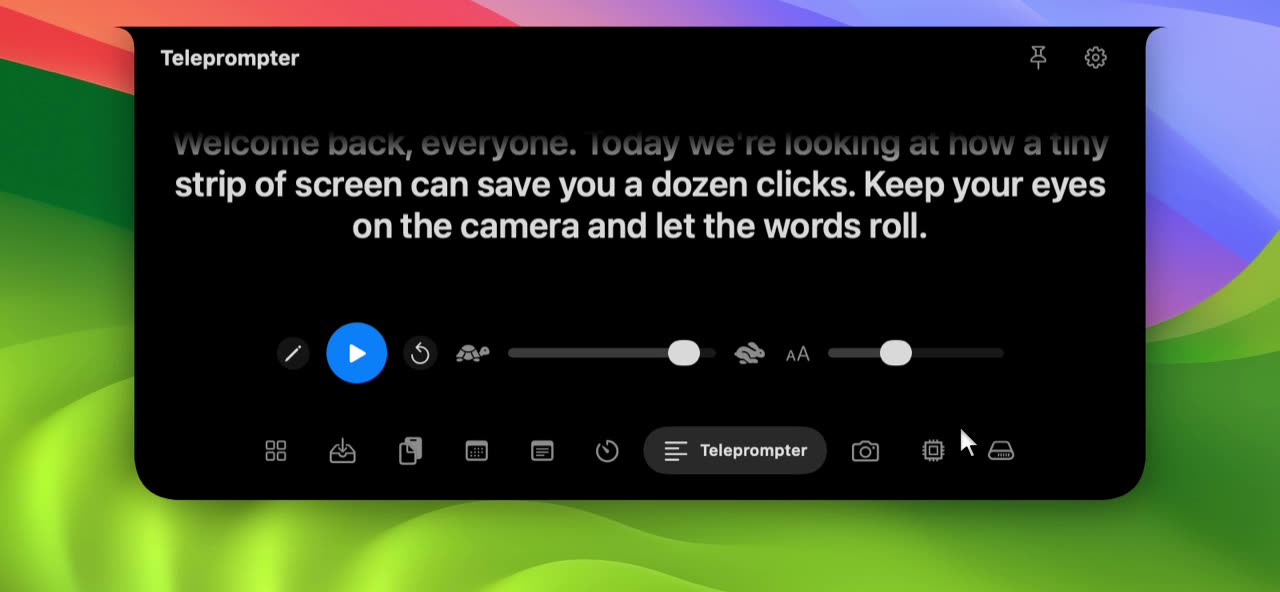
What it does.
- Beside the camera
- On a notched MacBook the camera sits in the notch, so a script there keeps your eyes close to the lens on video calls and recordings.
- Smooth, fading scroll
- Text scrolls steadily and fades at the top and bottom, so the line you are reading is always the clearest.
- You set the pace
- Speed and text size sliders are right beside the play button, and both are remembered next time.
- Edit in place
- Tap the pencil to paste or edit your script, then tap the check to go back to reading.
Reading from a script usually means looking away from the camera. A teleprompter in the notch shortens that distance to almost nothing.
Using it
Open the Teleprompter tab, press the pencil, paste your script and confirm. Press play, set the speed with the tortoise and hare slider, and size the text with the second slider.
For tips on pacing and writing for the ear, see our teleprompter guide.
- It scrolls at a speed you set; it does not listen to you or follow your voice.
- The script is plain text and there is one script at a time.
- Playback restarts from the top when you press the restart button, not automatically.
Questions about Teleprompter.
Where is my script stored?
On your Mac, in NotchStar's preferences. It is never uploaded.
Does it work on a Mac without a notch?
Yes. NotchStar shows a floating pill at the top of the screen instead, which is also near the camera on most displays.
Can I hide the notch while recording?
You can pin it open while reading and unpin it afterwards. Hiding it from a screen recording is not something it does.
Pair it with.
- Mirror
- Glance, adjust, join. See Mirror
- Timers
- Focus sessions without another window. See Timers

Put your notch to work.
Download NotchStar, open your first tool in seconds, and decide after 7 days whether it earns $4.