Disk space, duplicates, apps and cleanup
Get your space back, safely.
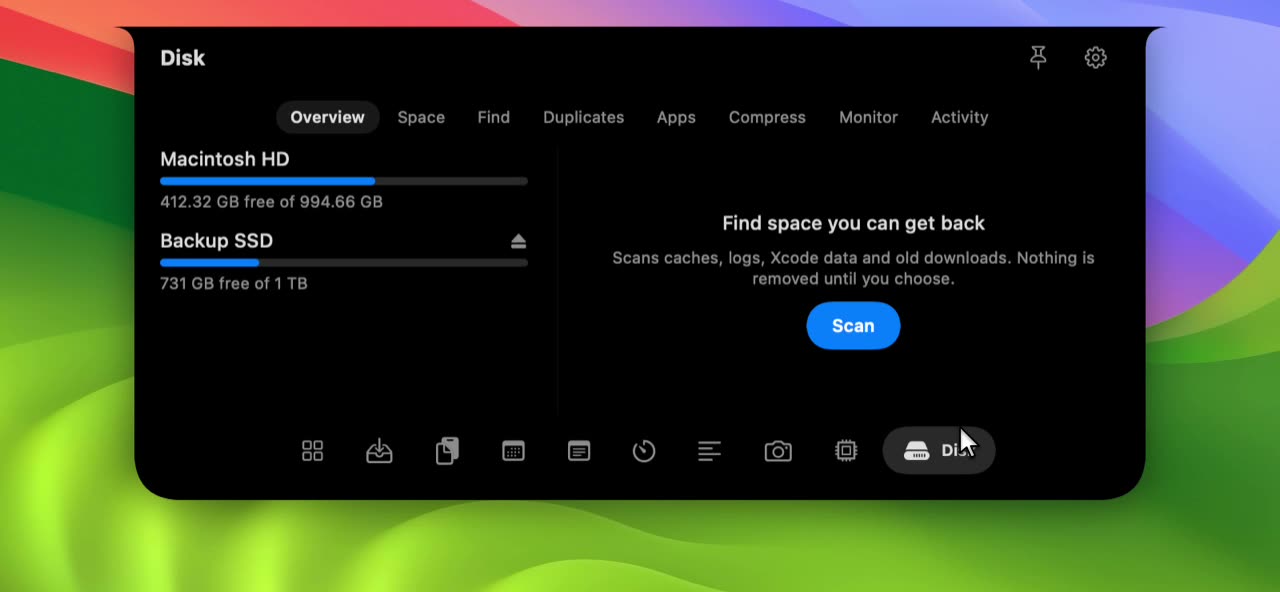
What it does.
- Overview and cleanup
- Free space for every drive, one click eject for external disks, and a scan of caches, logs, Xcode build data and downloads untouched for 90 days.
- Space
- Measures your home folder and ranks every folder by size. Click a folder to look inside it, or show it in Finder.
- Find
- Type to search every file and folder by name as you type, hidden ones included.
- Duplicates
- Compares files byte for byte across Downloads, Documents, Desktop, Pictures, Movies and Music. The oldest copy is always kept.
- Apps
- Lists your apps with the caches, preferences and logs they leave behind, so removing one cleans up fully. Apple apps are never listed.
- Compress
- Recompresses photos over 2 MB and videos over 50 MB so they take less space. The original goes to the Trash and anything that does not shrink is left alone.
- Monitor
- The busiest processes by CPU and memory, and which apps are listening on which network ports.
- Activity
- A running total of the space you have recovered, with the last 14 days charted.
Your Mac slowly fills with things you never chose to keep. The Disk tab shows how full each drive is, then lets you find and reclaim the space without opening another app.
How it is organised
A row of eight sections sits at the top of the tab: Overview, Space, Find, Duplicates, Apps, Compress, Monitor and Activity. Each section keeps its results while the notch stays open, so you can hop between them.
- Nothing runs in the background. Every scan starts when you press its button, and monitoring only runs while the Monitor section is on screen.
- Everything you remove goes to the Trash, never straight to deletion, and only from your home folder and /Applications.
- Scanning Documents, Desktop or Downloads makes macOS ask for access to that folder the first time.
- Compression is lossy. Photos are recompressed at a lower quality setting and videos as HEVC, so check the result matters before keeping it. The original stays in the Trash until you empty it.
- Duplicates compares file contents, not names, and skips files smaller than 1 MB.
Questions about Disk Cleanup and Duplicates in Your Notch.
Does it delete anything permanently?
No. Items move to the Trash and stay there until you empty it yourself. Space recovered counts only after the move.
Which folders can it touch?
Only your home folder and app bundles in /Applications. It refuses the home folder itself, your top level Documents, Desktop and Library folders, and anything in system locations.
Is it safe to clear app caches?
Caches are rebuilt by apps when they need them, so apps may open a little slower the first time afterwards. Quit apps first if you can.
Can it remove Apple apps or NotchStar?
No. Apple apps and NotchStar itself are not offered for removal, and an app that is running shows Running instead of a Remove button.
How does it keep the oldest duplicate?
It compares modification dates and keeps the oldest copy of each set, then moves the rest to the Trash when you confirm.
Pair it with.
- System Stats
- Know what your Mac is doing. See System Stats
- File Shelf
- Drop it now, decide where it goes later. See File Shelf

Put your notch to work.
Download NotchStar, open your first tool in seconds, and decide after 7 days whether it earns $4.